Know what you’ve posted
Unreviewed → Post-worthy → Planned → Posted — plus Skipped and Private.
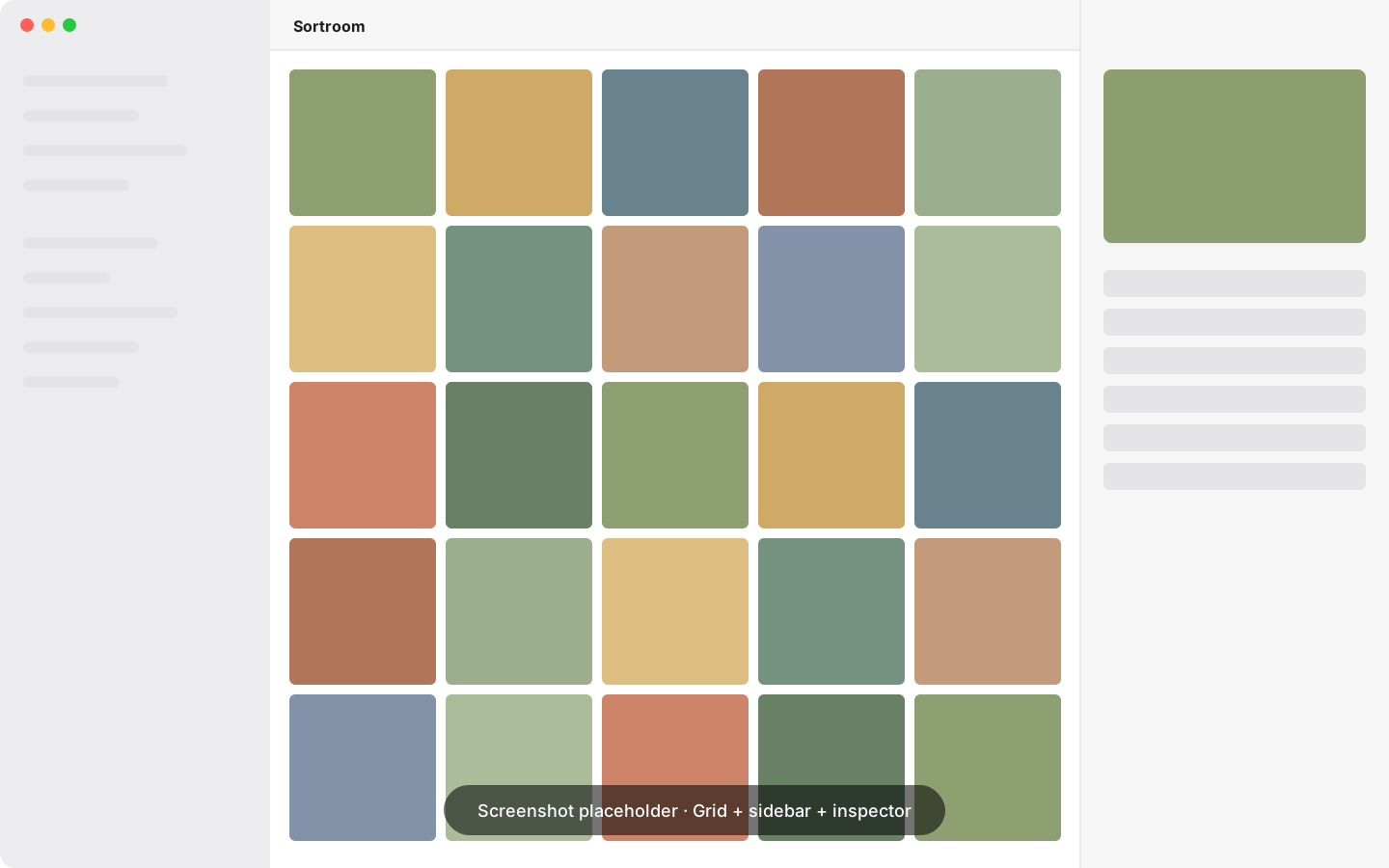
Give every photo a status by hand, with keyboard shortcuts, or in bulk. Filter by status in the sidebar and see at a glance what’s ready to share and what’s already out there.
In practice Sunday planning: open Post-worthy, pick this week’s three, log them as Planned.
A log of every post
Where, when and how each photo went out — or when it will.
Select photos and press ⌘L: Instagram or Facebook (and more), feed, story or reel, the date, the account, a link and the caption. Several photos become a carousel in the order you choose. The photo shows Posted on its own, the sidebar splits Posted by platform, and Never posted shows what hasn’t been shared yet. Only a note in Sortroom — nothing is uploaded, the photos never change, and every change can be undone. Don’t post online? Turn posting off in Settings and it all stays out of the way.
In practice You posted three macro shots as a carousel this morning: select them, ⌘L, Log Post. Done.
Waiting for edit
Know which photos still need editing.
Press E on the shots you want to edit: they gather in Waiting for Edit. Edited them in Lightroom? Press E again to mark them edited. The photo files stay where they are — the list fills itself.
Categories that don’t move your files
Flower, Macro, Sky, People — a photo can be all of them.
Categories are labels, not folders, so one photo can live in many. They also show up as Finder tags, so you can find them outside Sortroom too (Settings ▸ General ▸ Finder — on by default; turning it off removes only the tags Sortroom added). When you want real folders, one step turns a category into a folder.
In practice Tag a bee on a flower as Macro, Insect and Flower — it shows up in all three.
Smart categories
Make a “Coffee” category and watch it fill itself.
Name a category, tick what belongs — coffee, mug, bicycle, beach — and every photo your Mac already recognised joins it instantly. New photos join as they’re analysed. Take one out and it stays out.
- Uses what Apple’s on-device recognition already found — nothing is re-analysed, nothing leaves your Mac
In practice 31 coffee shots from two years of café visits, in one click.
Labels that follow your photos
Move, rename or copy a photo anywhere — its labels come back.
Sortroom recognises each photo by its content, not its file name. Move photos in Finder, copy them to another drive or rename them outside the app — the moment Sortroom sees them again, their status and categories return. Your newest change always wins.
In practice You reorganized a folder in Finder last month. Sortroom still knows which ones you posted.